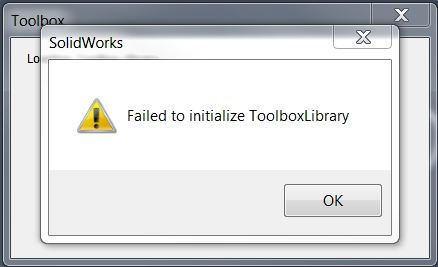
Sometimes when you launch SOLIDWORKS and try to load SOLIDWORKS Toolbox Library or Utilities add-in, SOLIDWORKS delivers a message stating “You appear to have experienced problems the last time you loaded the SOLIDWORKS Toolbox add-in”.

SOLIDWORKS Message

  • If you pick yes, continue to load Toolbox, SOLIDWORKS stops responding?! 
  • However, if you pick No, disabling Toolbox, everything seems to work fine.
    This issue is only experienced in SOLIDWORKS 2017. 

    This issue has been fixed in SOLIDWORKS 2017 SP4 which is scheduled to be released for the week of July 24th, 2017.


    To avoid the issue in previous service packs of SOLIDWORKS 2017 you should delete the ‘tb_default.sldedb’ from ‘<C:\Users\<user>\AppData\Roaming\SOLIDWORKS\SOLIDWORKS 2017\Toolbox\data’.


    Then re-launch SOLIDWORKS, you should have no issues adding the Toolbox Library or Utilities add-in.


    Article by Vipanjot Kaur - CSWP

    Have you ever seen these messages before launching SOLIDWORKS? There is no SolidWorks database. Full functionality is not available.

    SW-errors SolidWorks Database is missing error message
    SolidWorks Database is missing error message
    There is no error message in the SolidWorks databaseOr what about the SOLIDWORKS error message? Failed to initialize library of tools
    Solidworks Errors  Message
    Failed to initialize Error Message
    Not to worry! This means that the Hole Wizard / Toolbox function could not find the important database file SWBrowser.mdb.

    Solving the problem of the lack of a SOLIDWORKS database

    The fix is ​​simple. Open the SOLIDWORKS settings in the Tools> Options menu and select the Hole Wizard / Toolbar on the System Settings tab.
    Change Solidworksdata path
    SolidWorks Toolbox options

    The path specified in the "Hole Wizard and Tools" folder must contain the \ lang \ english folder, and the English folder must have the SWBrowser.mdb file. When you install SolidWorks by default, you must set the parameters that point to C: \ SolidWorks Data, and the MDB file will be located in the C: \ SolidWorks Data \ lang \ english \ SWBrowser.mdb folder.
    Therefore, if you have error messages, go to the folder specified in the toolbar options, and see if there is a file \ lang \ english \ SWBrowser.mdb. And make sure that you have full permissions to get there! If necessary, change the path to the Toolbox above by clicking the "..." button.

    If you can not find the SWBrowser.mdb file or if you still have problems, try repairing SOLIDWORKS


    Article by Scott Durksen, CSWE

    Windows 7, 8.1 and 10, include a feature called User Account Controls (UAC) which prevents access to the Windows registry files. However SOLIDWORKS requires access to the Windows registry during installation and even when running.


    Issues when installing SOLIDWORKS


    During installation, many items are written to the registry. With UAC enabled, these items can become corrupt or blocked completely as it is attempting to prevent the installation. It is recommended to disable the UAC, along with any antivirus/antispyware software, before installing SOLIDWORKS. If SOLIDWORKS was installed with the User Account Controls and Antivirus enabled, you may experience issues with your software.


    Issues when running SOLIDWORKS


    Once SOLIDWORKS is installed, the UAC can still cause errors when running. Some known issues are connecting to the SolidNetwork License server, loading the Toolbox, using equations & macros, and running Simulations ). We recommend keeping UAC disabled for machines running SOLIDWORKS.


    Windows UAC setting SOLIDWORKS


    In all Windows versions, the UAC can be found under Windows Control Panel > User Accounts > Change User Account Control settings. Below are shortcuts that can be used to access the UAC:


    To disable UAC in Windows 7:


    Go to Start > type UAC in the search box

    Slide the bar down the bottom for “Never notify”
    SW-errors User Account Control Settings
    User Account Control Settings
    Restart your computer

    To disable UAC in Windows 8.1:


    Press the Windows key on your keyboard to get to the Start screen
    Type “uac” to start a search
    Select “Settings” under the search box and press Enter

    SW-Errors-UAC access
    UAC access
    Slide the bar to “Never notify
    Restart your computer

    SW-errors User Account Control Settings
    User Account Control Settings

    To disable UAC in Windows 10:


    Press the Windows key on your keyboard to get to the Start screen
    Type “uac s” to start a search
    Select “Change User Account Control settings” in the results

    SW-errors Windows 10 UAC
    Windows 10 UAC

    Slide the bar to “Never notify
    Restart your computer

    SW-errors User Account Control Settings
    User Account Control Settings


    Article by Scott Durksen, CSWE

    Much like when SOLIDWORKS made your first sketch dimension auto scale your whole part back in 2014, with the release of SOLIDWORKS 2018, they have added another feature that users have asked for which makes modeling your designs easier even if it seems like a minor update at first glance.

    If you change your mind on the choice of hole in the SOLIDWORKS 2018 Hole Wizard tool, you no longer need to remember and re-input your hole specifications!


    Whether it is a design change late in your design process, or a change when you are first defining the part, it will be made easier by not needing to re-define your hole wizard settings every time a change is made.
    This feature is configurable, so if the previous method of each hole type having a default setting is preferred, the setting can be changed in the system options under ‘hole wizard / tool box’ settings.

    Solidworks errors Updated required to counter bored holes in slats
    Updated required to counter bored holes in slats

    Lets see it in action
    To take a quick look at the change to the Hole Wizard, we will use this shelf which currently has a counter bored hole to receive a pan head machine screw for mounting the slats. A design review has revealed that consumers MUCH prefer a counter sunk flat head screw on their shelf slats, and so you have been tasked with switching the configuration to use a counter sunk fastener.While this is an over simplification, it would still require modifying the hole definition, and when changed to a counter sunk style, the current hole settings would previously be lost.
    With SOLIDWORKS 2018, the settings used for the counter bored hole will be maintained when switched to a counter sunk hole.

    SOLIDWORKS 2018 retains hole specifications when selecting a new hole type!
    SOLIDWORKS 2018 retains hole specifications when selecting a new hole type!

    Updated counter sunk holes in slats
    Updated counter sunk holes in slats

    This feature is configurable, so if the previous method of each hole type having a default setting is preferred, the setting can be changed in the system options under ‘hole wizard / tool box’ settings.


    Article by Bryan Sprange, CSWE

    SOLIDWORKS 2018 adds SOLIDWORKS Toolbox hexalobular fasteners, commonly known as Torx. 

    The 6-point star shaped drive can be found in automobiles, power equipment, computers, electronicsm, etc . As the hexalobular profile has been standardized under ISO 10664, you can find these fasteners under the ISO standard in the Toolbox.
    SOLIDWORKS 2018 Hexalobular (Torx) Hardware
    SOLIDWORKS 2018 Hexalobular (Torx) Hardware
    Toolbox ISO Hexalobular Directory
    SOLIDWORKS 2018 Toolbox ISO Hexalobular Directory

    The hexalobular types included are:

    ISO 14587 (2011) Hexalobular Socket Raised Countersunk (oval) Head Tapping Screws 

    ISO 14581 (2013) Hexalobular Socket Countersunk Flat Head Screws 

    ISO 14582 (2013) Hexalobular Socket Countersunk Head screws, High Head
    SOLIDWORKS 2018 Toolbox Hexalobular Hardware Types
    SOLIDWORKS 2018 Toolbox Hexalobular Hardware Types

    ISO 14584 (2011) Hexalobular Socket Raised Countersunk Head ScrewsJust like with any other Toolbox fastener, these can be customized to add sizes or properties.
    SOLIDWORKS Toolbox Configuration
    SOLIDWORKS Toolbox Configuration


    Article by Scott Durksen

    Error Solidworks Toolbox:


    1. Failed to get writable document
    2. Unable to open read-only file
    3. Failed to  save Toolbox library: Access to the path is denied
    4. You appear to have experienced problems the last time you loaded the Solidworks Toolbox add-in

    Failed to get writable document


    In this case, you need to check the access rights to the Toolbox directory (by default C: \ Solidworks Data can be viewed in the Toolbox settings)
    Solidworks Change Options
    Solidworks Options
    Change Solidworks Toolbox Location
    Change Solidworks Toolbox Location


    To do this, right-click on the Toolbox-Properties - Security tab. Check that your account has write permissions.


    Unable to open read-only file


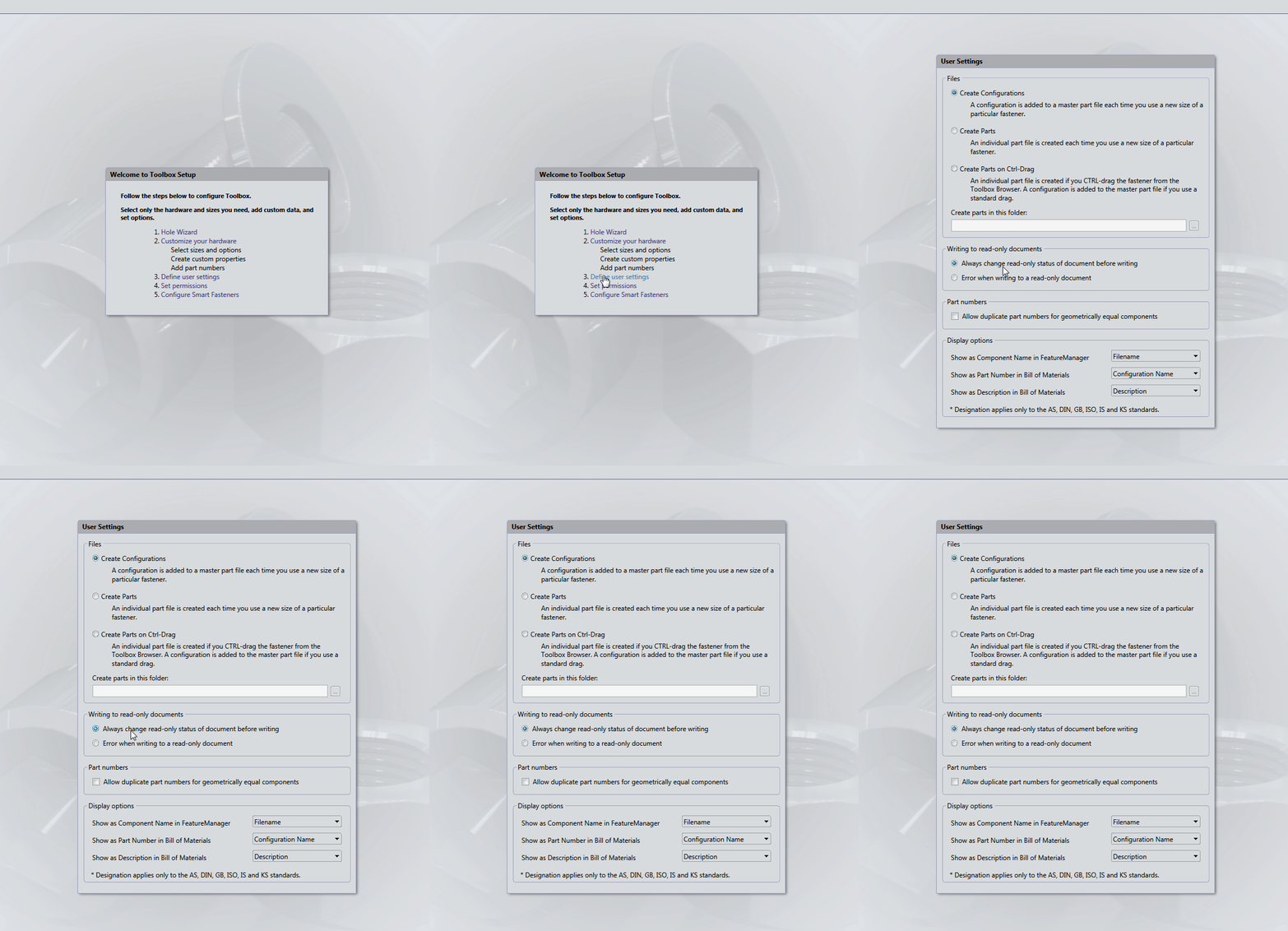
    With this error, you must tick the "Change the status of the read-only document to the record" in the Toolbox- "User Settings" configurator settings
    Change Solidworks Toolbox location
    Change the status of the read-only document to the record


    Failed to  save Toolbox library: 

    Access to the path is denied


    In the third case, you need to check the write permission of the "ToolboxFiles.index" file, which is located in the Toolbox - \ Browser directory. This error may appear in SW2012 and higher versions. This is due to the fact that starting from Solidworks 2012 the toolbox does not depend on the SWBrowser.mdb database, but stores the structure in the "ToolboxFiles.index" file.
    SOLIDWORKS Smart fasteners have their own page in the SOLIDWORKS Toolbox Settings: Step 5 – Configure Smart Fasteners. This is where washer size and fastener length are set and a default fastener is specified for the holes created without Hole Wizard.
    Solidworks Smart Fasteners Options
    Smart Fasteners Options

    The option to change the default SOLIDWORKS Smart Fastener type for Hole Wizard holes can be found in the Step 1 – Hole Wizard of the Toolbox Settings. 
    That is where each hole type gets a matching fastener from the Toolbox selection.
    The Reassign button can be used to change the default fastener for the selected hole type.

    Solidworks Reassign Default Smart Fasteners
    Reassign Default Smart Fasteners


    Article by Sanja Srzic

    Search This Blog

    Избранное сообщение

    SOLIDWORKS 2018 Import and Export Hole Wizard Data with Excel

    You can now import and export Hole Wizard data with Excel files in the Configuration tool with SOLIDWORKS 2018.  Previously this could only ...

    Popular posts